

Weather you can feel
WAFS forecasts, GFS data and local MSFS conditions feed a structured air mass: active pockets, stronger cores and stretches of smooth air.
ULTRA TURBULENCE LIVE · MICROSOFT FLIGHT SIMULATOR 2024
A real-time turbulence engine for Microsoft Flight Simulator 2024. UTL brings together dynamic motion tailored to your aircraft, synchronised cabin sounds and briefing tools to help you prepare for rough air along your route.
Six axes of motion, peaks and stretches of smooth air.
Creaks and vibrations synchronised with the bumps.
A map, vertical profile and briefing in the MSFS EFB.
Weather sets the context. The UTL engine turns it into varied motion, smooth transitions and synchronised cabin sounds.
WAFS forecasts, GFS data and local MSFS conditions feed a structured air mass: active pockets, stronger cores and stretches of smooth air.
Bumps, gusts, vibrations and swaying vary the rhythm of your flight. Roll, pitch, yaw and displacement along all three axes alternate between peaks and lulls.
Mass, speed and available aircraft characteristics shape the feel. From a light aircraft to an airliner, the response takes your aircraft into account.
Customise intensities, motion and cloud effects. Save a profile for each aircraft and have its settings recalled automatically.
Transitions between MODERATE, STRONG and SEVERE follow your custom settings for a smooth progression of effects.
Varied creaks, rattles and vibrations accompany the motion added by UTL. Left / right positioning adds immersion, with an on / off control and adjustable volume.
Motion shaped by local conditions, cabin sounds that follow it and settings tailored to your aircraft.
LOW ALTITUDE
Feel the air move as you fly your approach. At low altitude, UTL adapts the pace of disturbances to your speed, smooths rapid changes and progressively reduces its added motion near the ground.
FLYING THROUGH CLOUDS
In-cloud presence, cloud density and vertical wind reported by MSFS shape the disturbances around your aircraft, with gradual transitions into and out of clouds.
SYNCHRONISED CABIN SOUNDS
With each movement added by UTL, the cabin can respond with creaks, rattles and vibrations. A varied soundscape that accompanies the bumps your aircraft encounters.
Start with the Réaliste (Realistic) profile, then customise intensities, motion and cloud effects for each aircraft. UTL recalls its settings automatically. Turbulence and Cloud previews let you test the effects before your flight.
The map, active pockets, vertical profile and Ride Advisor give you a complete view of the route, in Windows and in the MSFS EFB.
THE WEATHER CONTEXT
UTL uses public WAFS forecasts, a GFS fallback estimate, local MSFS observations and turbulence SIGMETs.
These sources provide the weather context. Fine-scale pockets, their cores and the resulting motion are modelled by the UTL engine.
RIDE ADVISOR · WINDOWS & MSFS EFB
Import your SimBrief route and consult Ride Advisor without leaving the MSFS EFB. The same tools are also available in Windows to prepare your flight.
Public reports and simulated UTL encounters are identified separately.
Explore your route, recall your aircraft’s settings and keep track of passenger comfort.
Click a screenshot to enlarge it.
Monitor intensity, conditions and weather sources. The passenger fear index provides a playful estimate of how the flight feels to them, with a report to review after the trip.
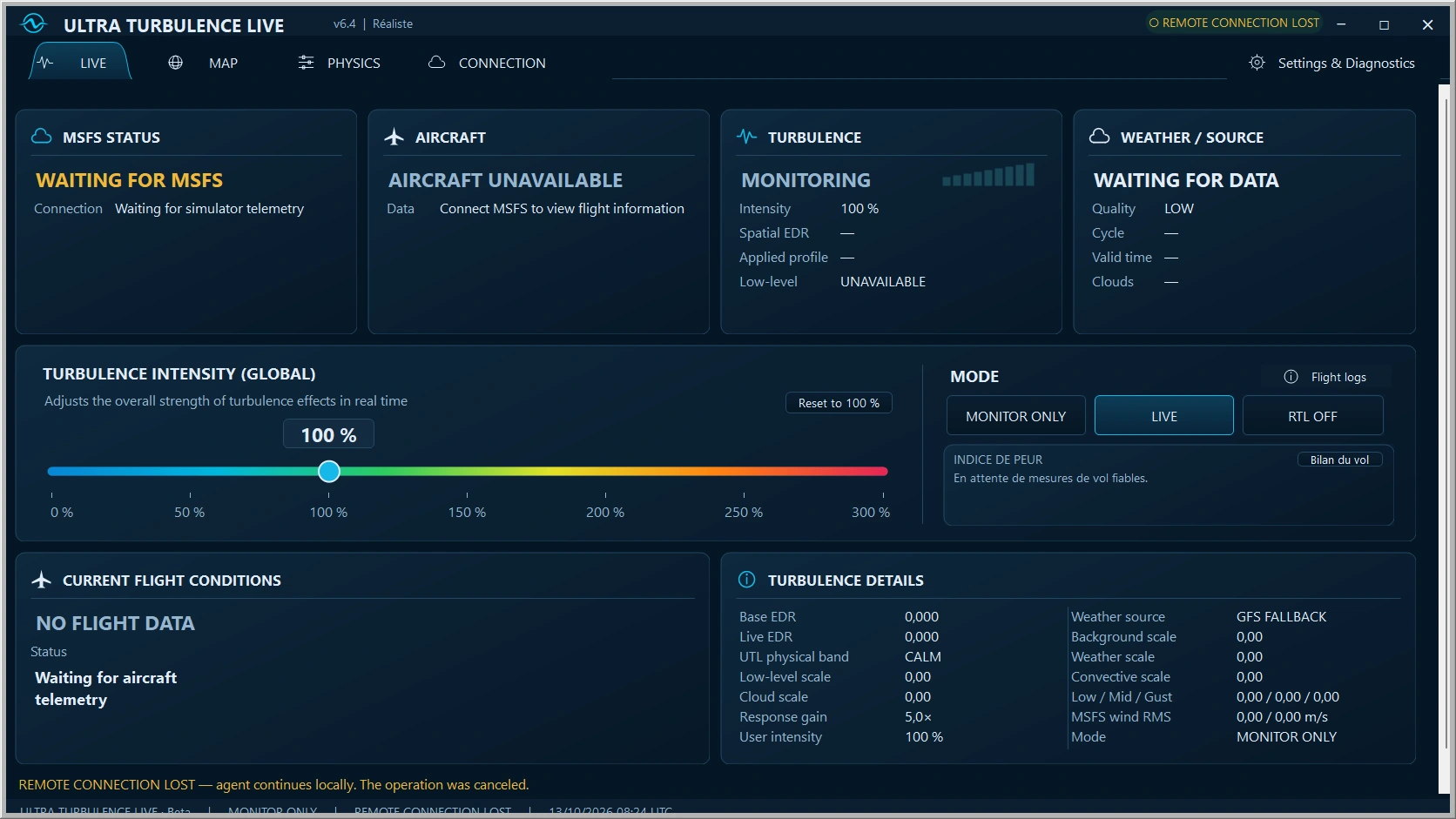
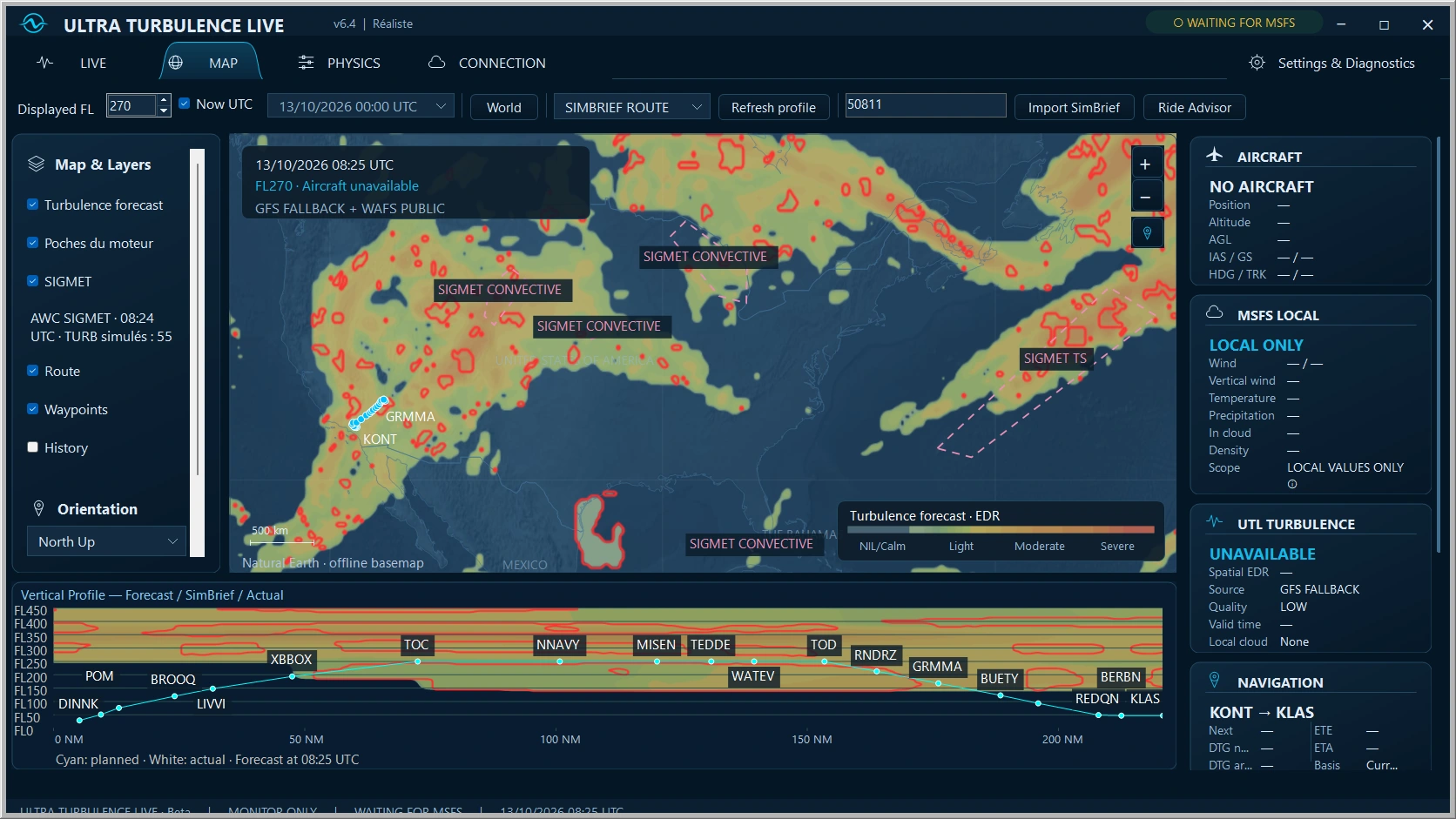
Forecasts, active pockets, your SimBrief route and SIGMETs: explore the map with zooming, panning and aircraft following.

Read conditions by altitude along your route and its waypoints, from climb to descent.
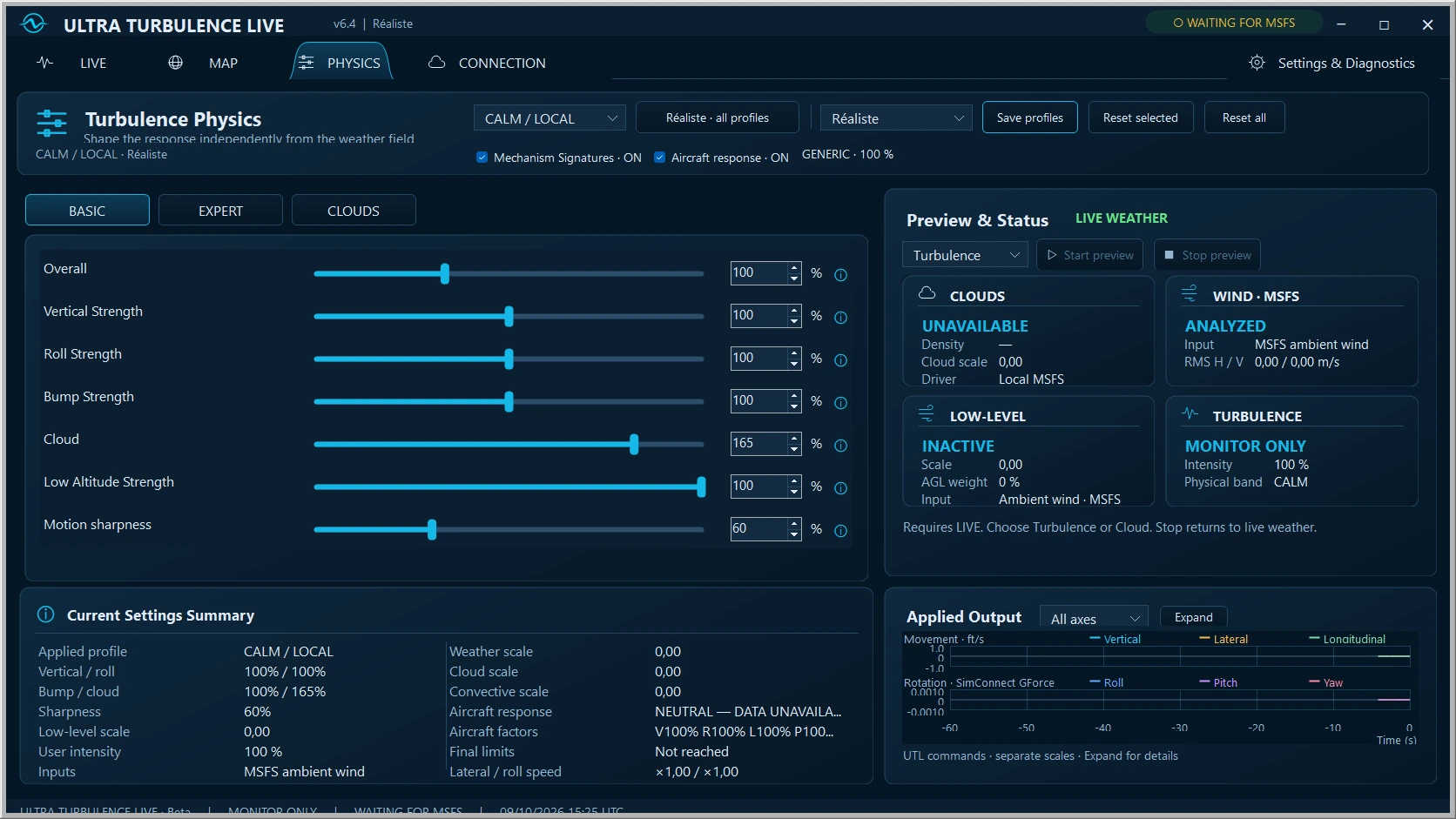
Customise each aircraft: intensities, motion, transitions and cloud effects. Test them with Turbulence and Cloud previews.
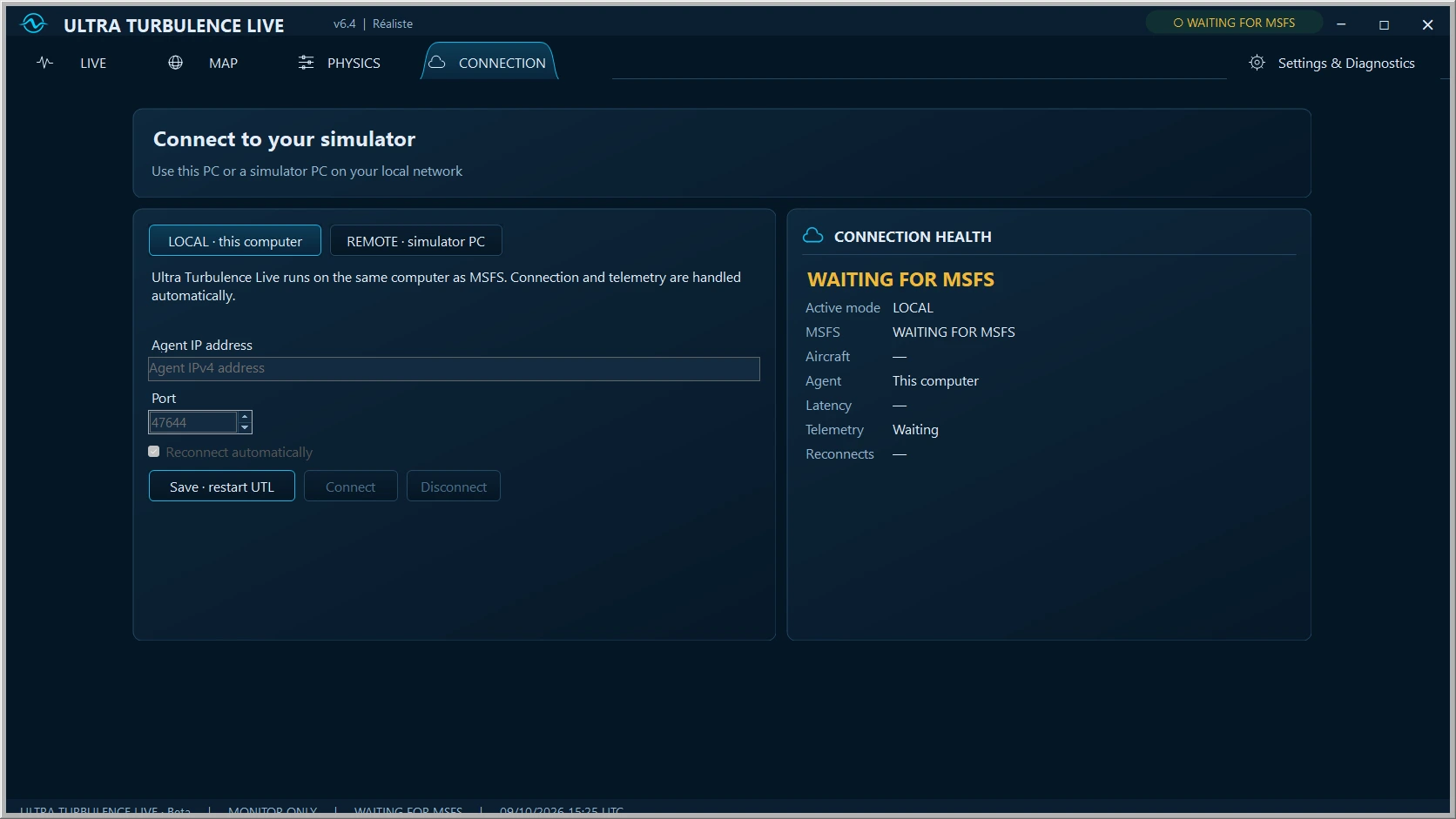
Run UTL on the simulator PC or a second PC on your local network.
Explore Turbulence and Cloud previews, then read the movements added by UTL on the six-axis graphs.
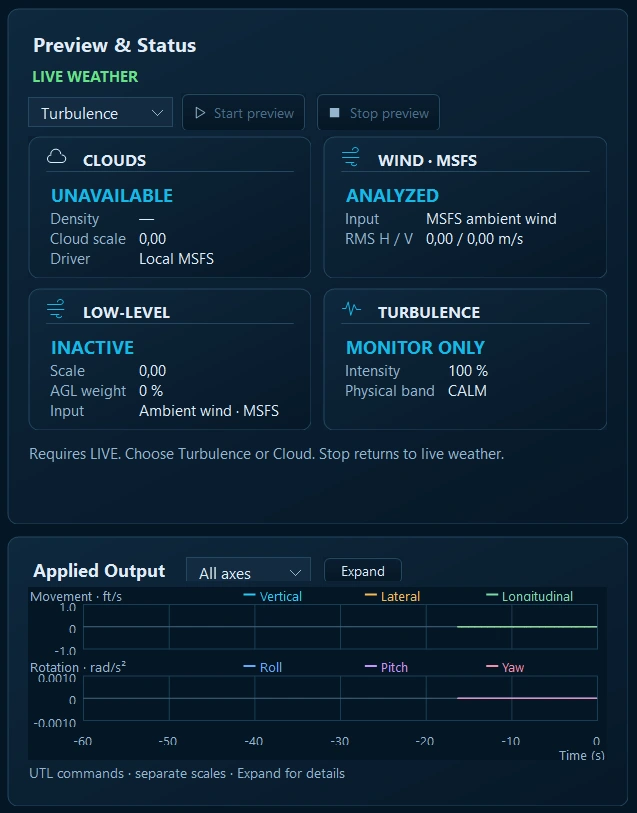
Plan your route, choose your mode and stay in control of the experience.
Run UTL on your MSFS PC. To use a second PC, choose REMOTE mode and run UTLSimAgent on the simulator PC.
Import your route to view it in UTL. You can also use the application without SimBrief.
Apply effects in LIVE, observe data in MONITOR ONLY, or disable UTL effects with OFF to compare with MSFS on its own.
Check a playful estimate of passenger experience, then review the report after your trip.
Flight simulation software. Not suitable for real-world air navigation.
A few answers to help you understand UTL.
No. MSFS retains its weather system. UTL adds real-time turbulence motion driven by weather data and tailored to the aircraft, along with synchronised cabin sounds. The map, vertical profile and Ride Advisor help you prepare your flight.
Public WAFS forecasts, a GFS fallback estimate, local MSFS observations and SIGMETs provide the weather context. UTL then models fine-scale pockets, cores and smooth stretches, along with the resulting motion. These are not observations of every real-world pocket.
Yes. Mass, dimensions and speed influence the engine’s response. A light aircraft and a wide-body airliner respond differently to the same weather situation.
UTL adapts the pace of disturbances to aircraft speed and smooths rapid changes in the motion it adds. Local MSFS wind observations complement these effects. Added motion decreases progressively near the ground.
Yes. Cloud effects have dedicated settings, independent of turbulence outside clouds. The engine uses local conditions reported by MSFS, with gradual transitions into and out of clouds. The Réaliste (Realistic) profile and Cloud preview let you explore these effects.
Creaks, rattles and vibrations are synchronised with the movements added by UTL and distributed between the left and right sides. You can switch this ambience on or off and adjust its volume.
Yes. Save your intensities, motion and cloud effects in a profile for each aircraft. UTL recalls your aircraft’s settings automatically. Transitions between MODERATE, STRONG and SEVERE also follow your custom settings.
UTL displays alerts and intermittently simulates the reported turbulence, taking its area, altitude and validity period into account. Pockets and motion remain modelled by UTL.
In Windows and in the MSFS EFB, with SimBrief import. Compare nearby flight levels to identify potentially smoother stretches and add context with available public observations and simulated UTL encounters. These two types of report are identified separately.
No. SimBrief import is optional. You can use UTL without a SimBrief account or flight plan.
Yes. REMOTE mode lets you use UTL on a second PC on your local network. UTLSimAgent must be running on the PC that runs Microsoft Flight Simulator.
Yes. Turbulence and Cloud previews let you explore the effects and adjust your profiles. LIVE applies effects, MONITOR ONLY lets you observe data, and OFF disables UTL effects to compare with MSFS on its own.
The release is coming. No commercial release date has been announced yet; it will be shared on this website.
ULTRA TURBULENCE LIVE
The release date will be announced here.